Step 1: Organizing Media
Organize the files before you create a Timelapse project. The folder layout is one project folder, a Monitoring Session folder for each data drop (MS01, MS02), and a camera folder named with the camera id from the deployment data.
That layout, including SD cards that contain more than one media folder, is in Step 5: Organizing camera trap photos and videos of the deployment guide. Follow that page. This page covers only what changes once those folders are opened in Timelapse.
How Timelapse uses the folder path
When Timelapse exports ImageData.csv, each file has a RelativePath such as MS01\LC1. That path is split into the folder levels from the example folder structure and joined to the deployment spreadsheet.
With the recommended layout, the columns are the Monitoring Session and the camera id. The camera folder is the join key. It matches the camera name in the deployment spreadsheet, and the image datetime comes from the camera's EXIF DateTime, matched to that camera's deploy and retrieve dates.
If the project uses an extra folder level, that level is another column. The join has to be given the full list.
Once Timelapse has created TimelapseData.ddb, do not rename, move, or reorganize any folder or file inside the project folder. Timelapse stores each file's RelativePath in that database. Changing a folder name breaks the link between the image and its annotations.
You can move or copy the project folder itself. You can add a new Monitoring Session folder for a later retrieval, as described below. Folders that are already in the project keep their names.
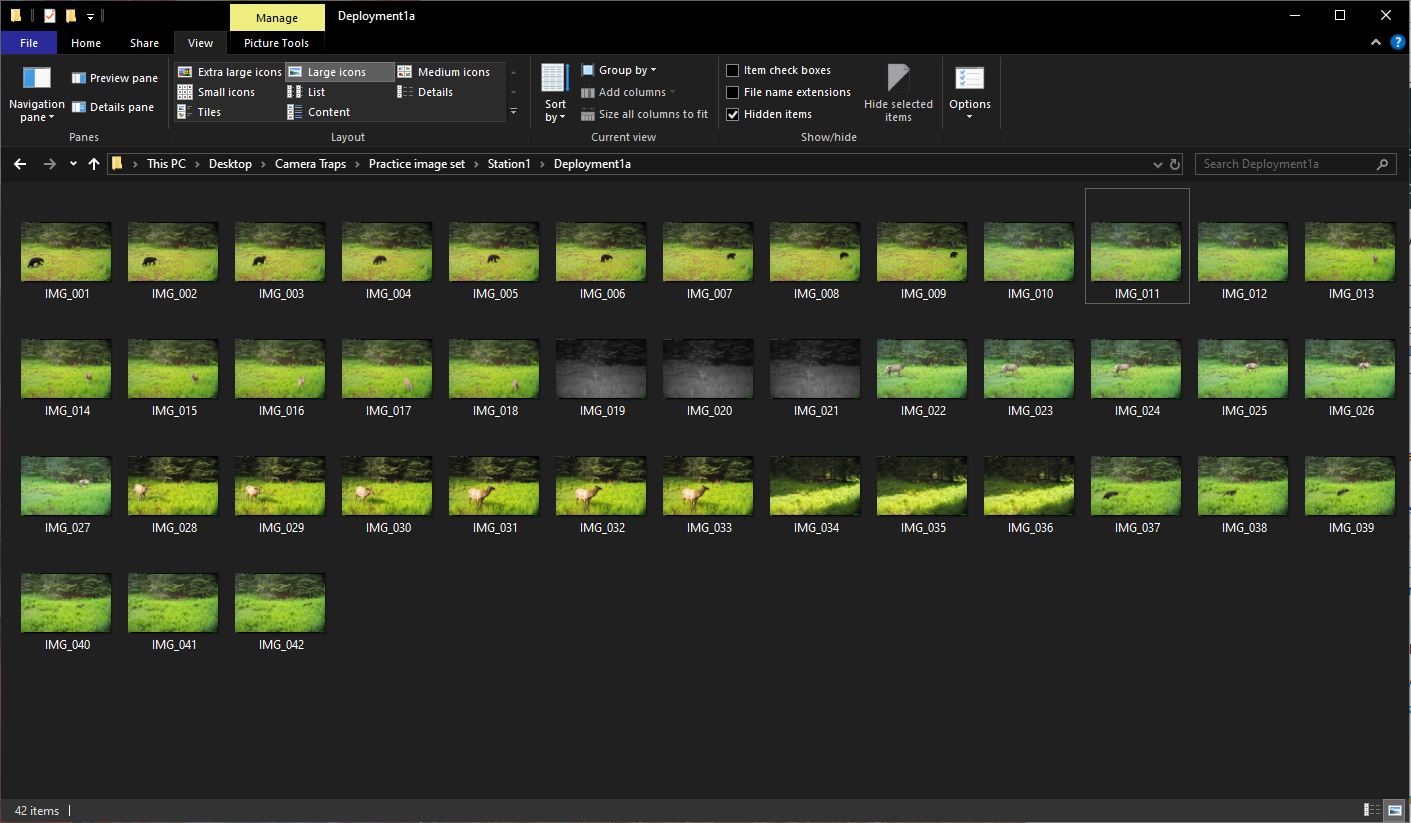 Example of a Timelapse project folder, using the practice image set.
Once you start a project in Timelapse, the software will create several files in the project folder:
- A project template database (
TimelapseTemplate.tdb) - A project data database (
TimelapseData.ddb) - A
backups/directory where Timelapse will periodically make data backups
Adding New Images to an Existing Timelapse Project
In many camera trap workflows, images are collected periodically as SD cards are retrieved from the field. These new images can be added to an existing Timelapse project without creating a new project or database.
1. Copy the new images into the existing project folder
Copy the new images into the project folder, using the same folder levels as the rest of the project. Those levels are defined in Organizing camera trap photos and videos.
For example:
Upper_Jatapu_Camera_Trap_Project/
├── MS01/
│   └── LC1/
└── MS02/
    └── LC1/ ← newly added images
SD cards from the same retrieval go into a new Monitoring Session folder (MS02, and so on). Copy them with the same rules as the first retrieval, including SD cards with more than 10,000 images.
After you have started analyzing images in Timelapse, do not rename or reorganize folders that already exist in the project. Changing folder names or structure breaks the connection between the images and the Timelapse database. You can add new folders containing additional images within the project folder.
2. Add the new images in Timelapse
Once the images are in place on disk:
- Open the existing project in Timelapse.
- From the menu bar, select File → Add image and video files to this image set…
- Navigate to the folder containing the newly added images.
- Select the folder and click Open.
Timelapse will scan the selected folder and add the images to the project database.
If you have set up folder metadata and the new images do not match the existing folder structure, you will see a warning when adding the images. You can add a new folder metadata field in the Template editor or ignore this warning at your own risk. It is not clear how ignoring the warning might manifest when using the folder metadata and it is strongly suggested that you test this out before moving forward with labeling work.
3. Initialize metadata for new folders
If the new images are stored in a new folder (for example a new Monitoring Session), Timelapse will recognize that the folder has not yet been associated with metadata.
To complete setup:
- Select an image from the new folder.
- Open the Folder Data tab.
- Navigate to the appropriate level (e.g., Deployment).
- Click “Click to edit data for this folder” and fill in the metadata fields.
4. Continue analysis
After the images are added and folder metadata is initialized, the new images will appear in the normal browsing workflow and can be reviewed and annotated like the rest of the dataset.
This incremental workflow allows analysts to continually expand a Timelapse project as new deployments are retrieved from the field.