GC Dataset Importer
Upload a dataset file and turn it into a clean PostgreSQL table in your Guardian Connector data warehouse. The app guides you through choosing or naming the dataset, uploading a file, optionally tagging the data source, and finalizing the import. It also saves the original and transformed files to your deployment’s data lake (accessible via File Browser).
📦 What this tool does
- Converts and validates common tabular files (
.csv,.xlsx/.xls,.json) to CSV for ingestion; or, to GeoJSON if the file has spatial data. - Converts and validates common spatial files (
.geojson,.kml,.gpx,.kmz,.xml(if it's a SMART XML file), Shapefiles (.shpand accompanying files)), GeoPackage files (.gpkg), and CyberTracker files (.json) to GeoJSON for ingestion. - Optionally applies source-specific transformations (e.g., KoboToolbox, CoMapeo, ODK, Locus Map)
- Writes the result to a new or existing Postgres table and archives files to file storage
Step-by-Step: Import a Dataset
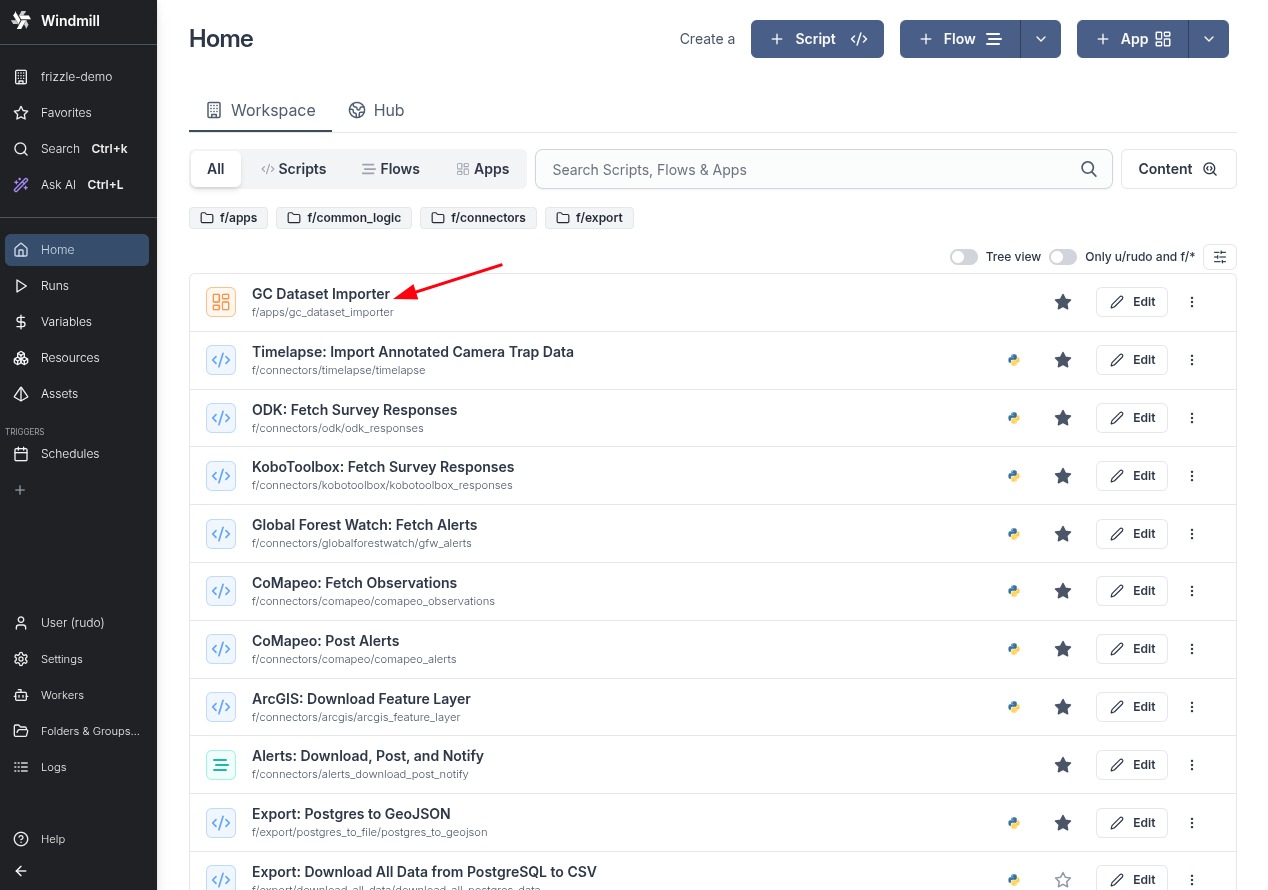
1. Open the app in Windmill
From GC Scripts Hub → Apps, click GC Dataset Importer.
2. Choose or name your dataset
In the Choose your dataset step, you can either:
- Select an existing dataset from the interactive dropdown menu — which searches and filters existing tables in your data warehouse as you type — to append new data to that dataset, or
- Create a new dataset by entering a clear, human-readable name in the Dataset name field below.
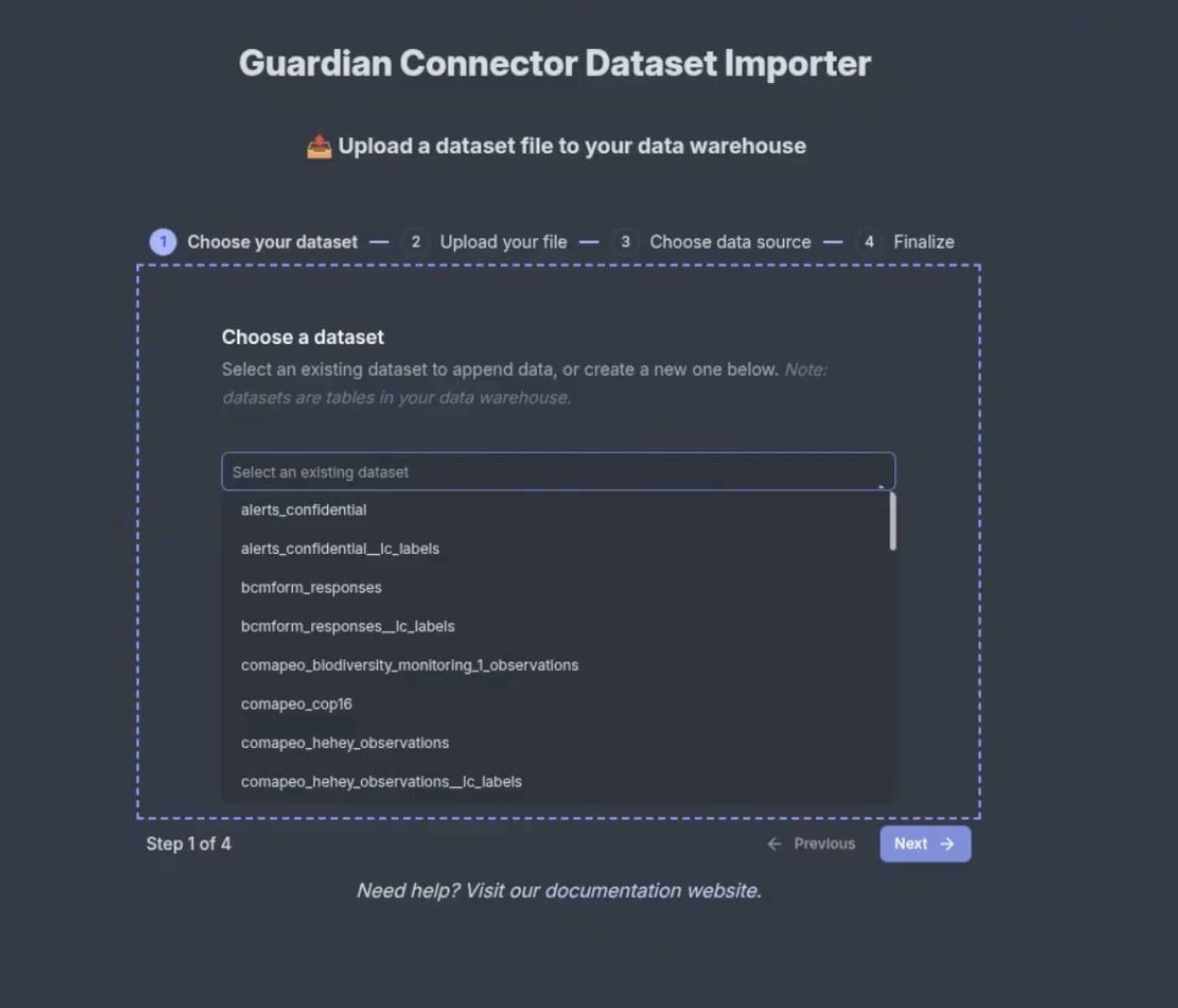
As you select or enter a name, the importer automatically checks the database in the background and displays the resulting table name in the warehouse.
If you select an existing dataset from the dropdown (or enter a name that matches an existing table), the importer alerts you that new records will be appended directly to that table.
3. Upload your file
Select your file and click Upload File. When the upload completes, proceed to the next step.

Accepted formats: CSV, GeoJSON, GPX, JSON, KML, XLS, XLSX, KMZ, XML (SMART), GeoPackage (.gpkg), and Shapefiles.
4. (Optional) Choose a known data source
If the file originates from a known tool, toggle Is this dataset from a known source or tool? and select it. This adds a data_source tag and, for some sources, applies smart formatting.

Examples
- KoboToolbox: standardizes survey exports for consistent column names and types
- CoMapeo / Mapeo / Locus Map: normalizes fields for observations and waypoints
5. Review and finalize
Confirm the summary and click Save & Finish to write the data.

You’ll see a success message when the import is complete.

After You Import
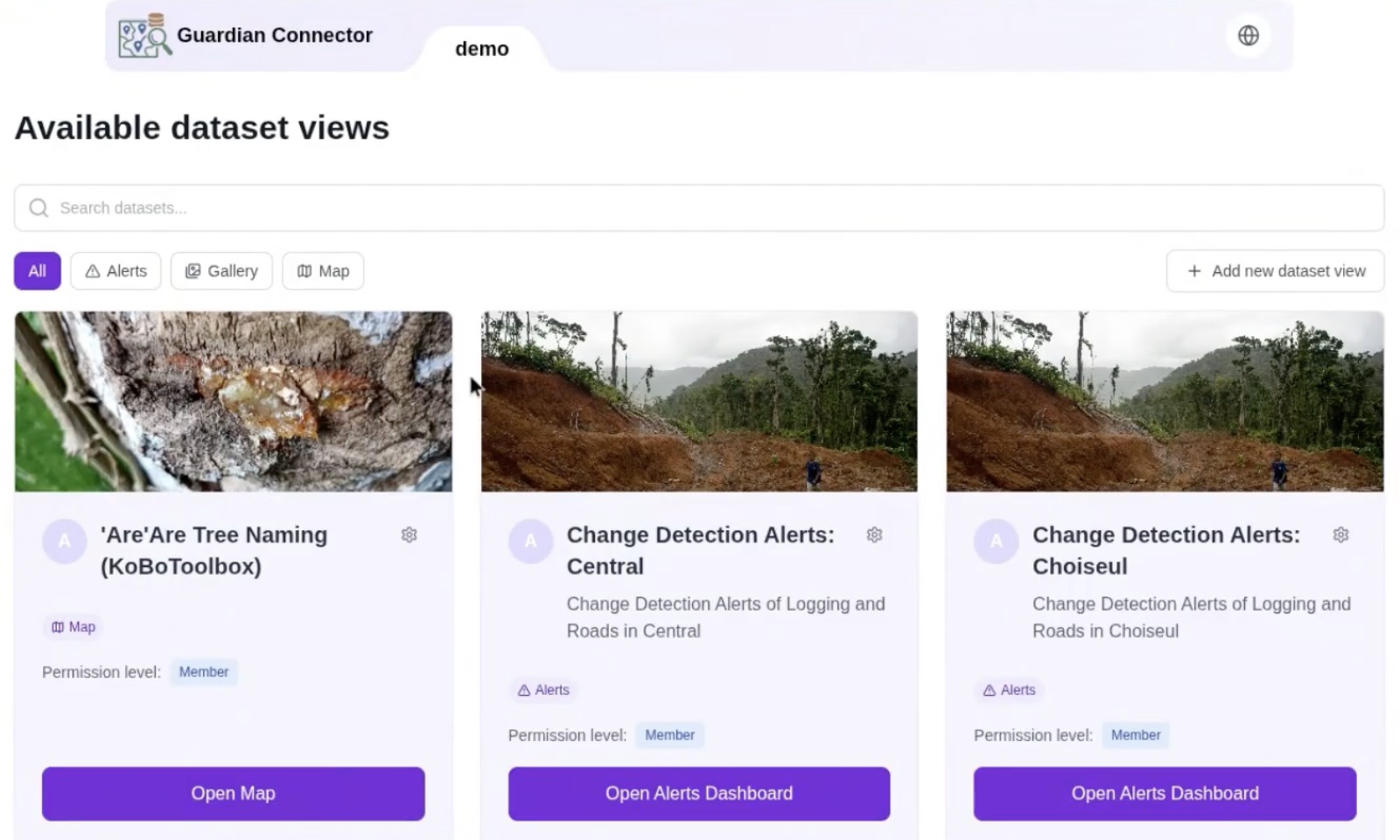
Use your new table in GC Explorer
Open GC Explorer and add your newly created table to a View to explore or publish.
See: GC Explorer
If you are using Superset, or any other tool that uses PostgreSQL as a data source, you can use also access the uploaded data there.
Access your uploaded files in File Browser
The importer saves both the original file and any transformed output in a folder named after your table (e.g., my_kobo_toolbox_data).
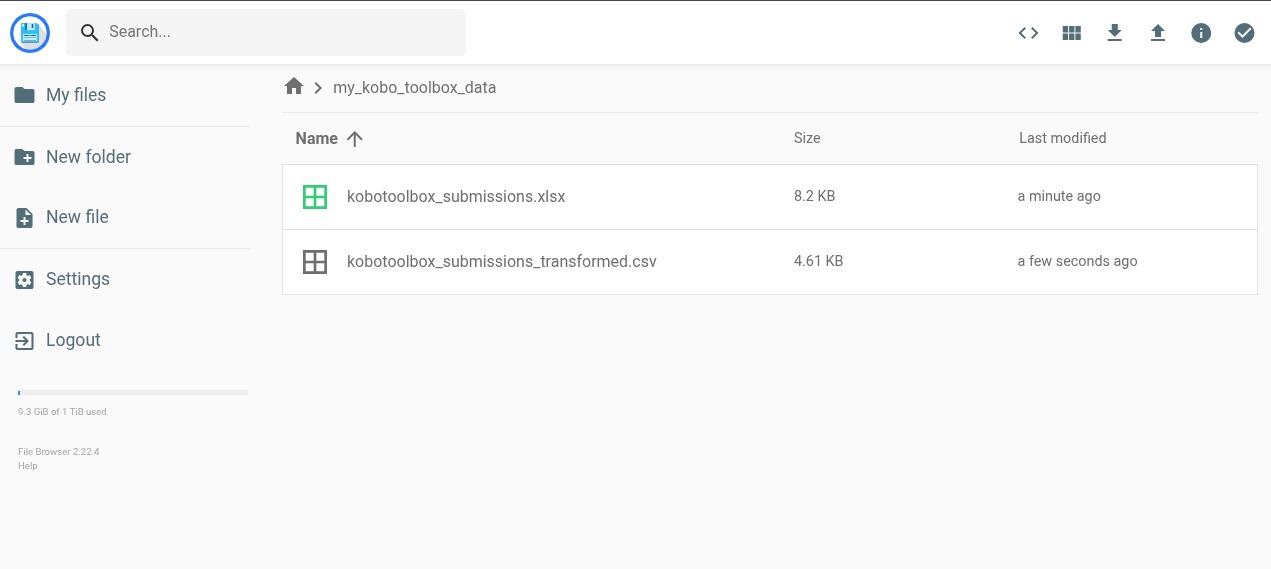
See: File Browser for share links or downloads.
If you uploaded a spatial data file, you can download it here to use in a tool like QGIS.
Upload media attachments in File Browser
Often, datasets from tools like CoMapeo, Mapeo, or Locus Map, include media attachments like photos, audio, or video files. You can upload these to File Browser.
- Open File Browser.
- Navigate to the dataset folder.
- Create a new folder for the media attachments like
media,photosorattachments. (It is recommended to use the same folder name as what was exported from the tool.) - Open the new folder, and upload the media files (either using the drag-and-drop interface, or by clicking the Upload button).
You can now generate a share link for the media attachments folder and use it in a tool like GC Explorer to embed the media attachments in a view. See File Browser: generating share links for more details.
Tips & Troubleshooting
- Unsupported file type. Convert it locally to one of the supported formats, then re-upload.
- Large files. If the upload stalls, the file might be too large. Try resizing the file to a smaller size. A recommended maximum size for a file is 5MB on a computer, or 1-2MB on a mobile device.
- Accidental upload. If you accidentally upload a file, but did not click Save & Finish, you can just refresh the page. (It will be cleaned up automatically.) If you did click Save & Finish, the database table will have to be deleted manually. (In the future, we will add a way to delete the table.)
For any other issues, please contact us at guardianconnector@conservationmetrics.com or file an issue on GitHub.
See also
- File Browser - for sharing links or downloads of the original and transformed files, or uploading media attachments associated with the dataset.
- Technical overview & architecture - for developers, and includes a to-do list for future features.